
When new features are rolled out, testing remains the biggest bottleneck.
Typically, the workflow goes something like this: build a feature, create a PR, push to CI, skim through some screenshots, and hope nothing breaks in production when the user hits.
Now, don’t get me wrong, shipping new features quickly is great, but traditional testing simply can’t keep up. And even though the tools for testing do exist, they are not integrated with the rest of your workflow. This is probably why teams either skip tests or ship without doing them properly (hence skimming through some screenshots).
Which brings me to another point: we plan in one tool, build in another, review somewhere else, and deploy in yet another. Then we try to patch it all up with multiple screenshots, team meetings, and tons of messages.
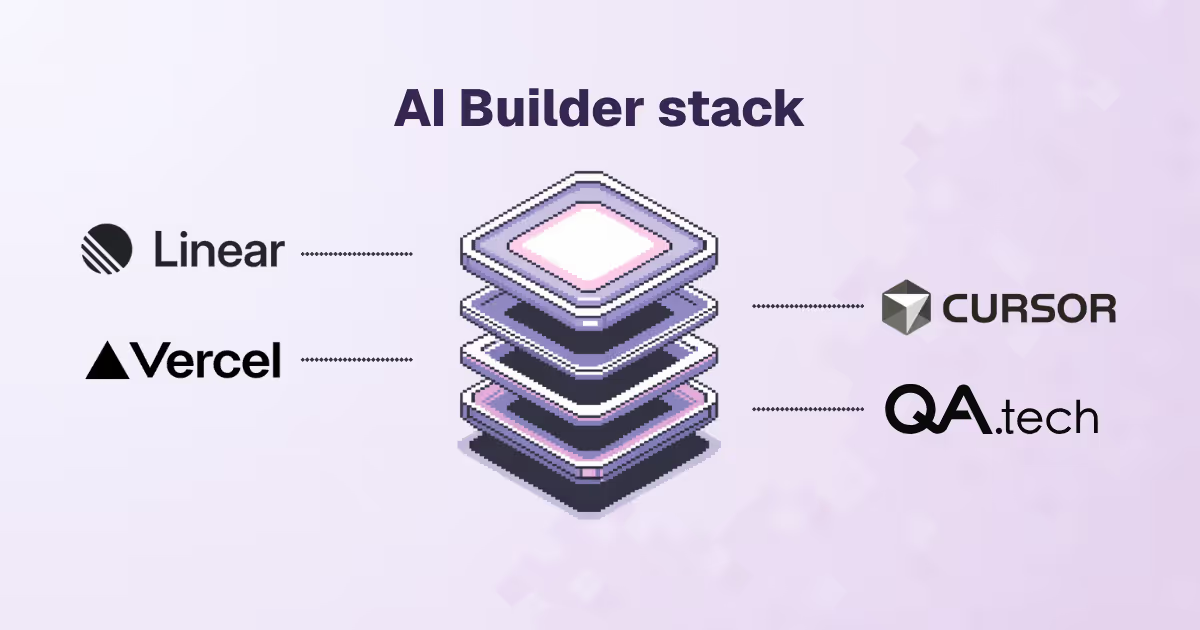
Luckily, there is a way. Linear, Cursor, Vercel, and QA.tech make up a stack of tools that work together, handle each task automatically, and let you stay focused on building. In this article, I’ll walk you through building a demo checkout flow app using these tools. You’ll see how they work together and how they help you ship faster without breaking things. Let’s get started.
Building a Checkout Flow That Actually Works
To demonstrate this workflow, we’ll build a 4-step checkout flow:
- Cart review
- Shipping information
- Payment details
- Confirmation page
You might be wondering why we are only focusing on the checkout flow. The answer is simple: it’s a core business process that comes with multiple edge cases like empty carts, payment cancellation, expired sessions, etc. If anything breaks here, you lose your revenue.
Here’s the stack we’ll use:
- Linear for clear and trackable work
- Cursor for building at lightning speed
- Vercel for instant preview deploys
- QA.tech for an end-to-end (E2E) testing
Let’s start with the planning tool.
Plan It in Linear, Build It in Cursor
Planning in Linear
I’ll break down the checkout flow app into simple and trackable tasks.
The main focus of this article will be on adding the Coupon Codes functionality to the Cart Review stage of your checkout process.
First, let’s create a Linear ticket. It can be something like “Feature: Build checkout flow with coupon validation.” Then, we can divide it into small subtasks according to our requirements.
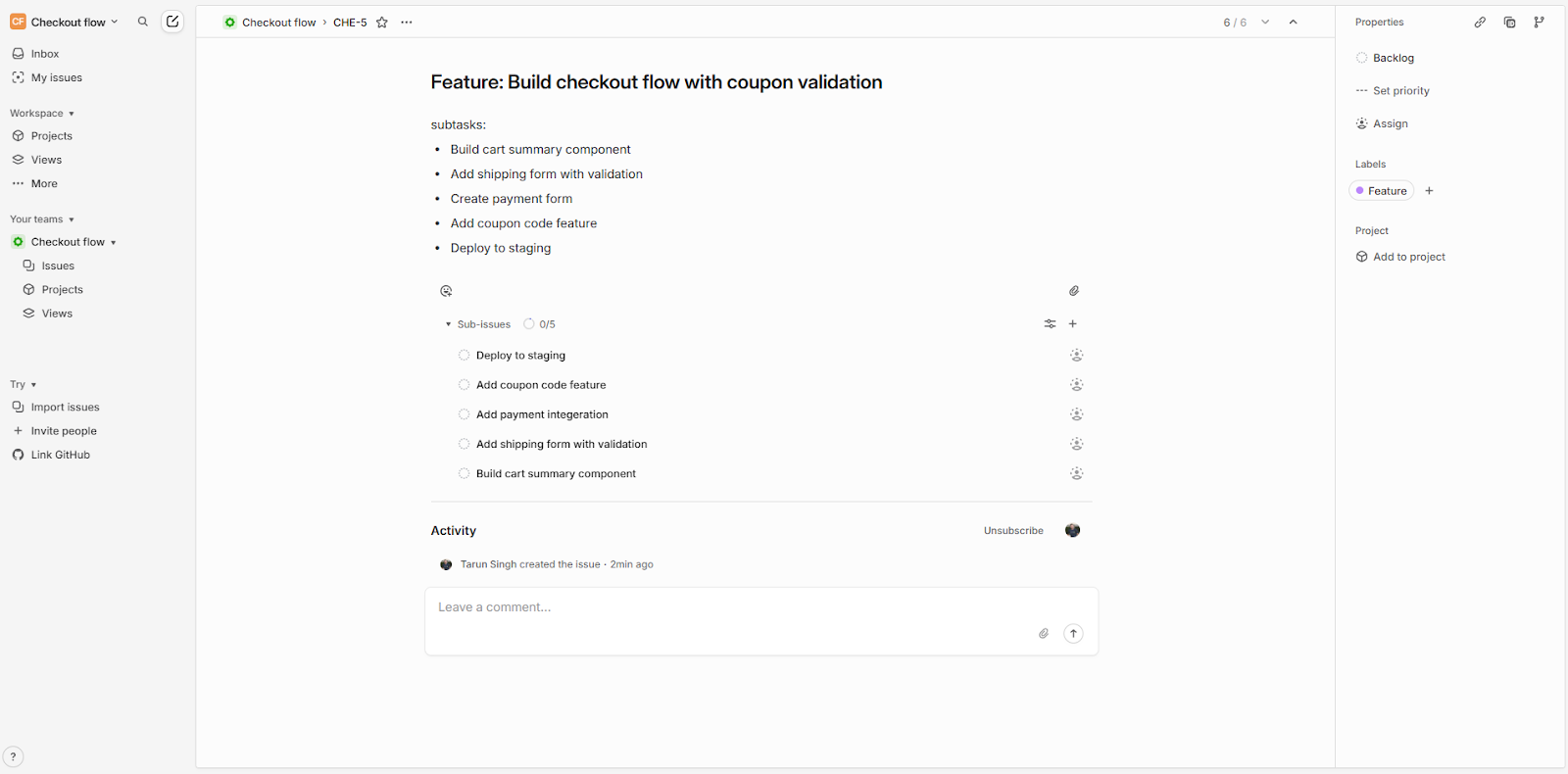
For the sake of this demo, we’ll introduce a bug in the Coupon Code feature's client-side validation. And to spice it up, it won’t be a glaring bug. It will be a tricky one that only surfaces under certain conditions. In other words, the one that slips past human reviews and scripted tests.
Building Fast with Cursor
Now it's time to code. Open Cursor (download and install it if you haven’t already) and create a new directory to start building the app. Then, let AI do its magic.
Let’s say you want to create a cart component in the 4-step checkout flow app. You could give Cursor a prompt like: “Build a cart component for my app to list items with prices and quantities.” It will then generate a code along these lines:
// src/components/CartStep.jsx

const CartStep = ({ cartItems, subtotal, onQuantityChange, formatCurrency }) => {
  return (
    <div className="space-y-4">
      {cartItems.map((item) => (
        <div
          key={item.id}
          className="flex flex-col gap-4 rounded-2xl border border-slate-100 bg-slate-50/80 p-4 shadow-sm sm:flex-row sm:items-center sm:justify-between"
        >
          <div className="flex-1">
            <p className="text-lg font-semibold text-slate-900">{item.name}</p>
            <p className="text-sm text-slate-500">{item.description}</p>
          </div>
          <div className="flex items-center justify-between gap-6 sm:w-auto">
            <div className="flex items-center rounded-full border border-slate-200 bg-white shadow-inner">
              <button
                type="button"
                onClick={() => onQuantityChange(item.id, -1)}
                className="px-3 py-2 text-lg font-semibold text-slate-500 transition hover:text-slate-900"
              >
                –
              </button>
              <span className="min-w-[3ch] text-center text-base font-semibold">
                {item.quantity}
              </span>
              <button
                type="button"
                onClick={() => onQuantityChange(item.id, 1)}
                className="px-3 py-2 text-lg font-semibold text-slate-500 transition hover:text-slate-900"
              >
                +
              </button>
            </div>
            <div className="text-right">
              <p className="text-lg font-semibold text-slate-900">
                {formatCurrency(item.price * item.quantity)}
              </p>
              <p className="text-xs text-slate-500">
                @ {formatCurrency(item.price)} ea
              </p>
            </div>
          </div>
        </div>
      ))}
      <div className="flex items-center justify-between rounded-2xl bg-white p-4 shadow-inner">
        <div>
          <p className="text-sm font-semibold uppercase tracking-wide text-slate-400">
            Subtotal
          </p>
          <p className="text-xs text-slate-500">Shipping + tax calculated next</p>
        </div>
        <p className="text-xl font-semibold text-slate-900">
          {formatCurrency(subtotal)}
        </p>
      </div>
    </div>
  );
};

export default CartStep;
As for the payment details, it will come up with something like this:
// src/components/PaymentStep.jsx
const PaymentStep = ({
  paymentInfo,
  couponInput,
  couponStatus,
  onPaymentChange,
  onCouponInputChange,
  onApplyCoupon,
}) => {
  return (
    <div className="space-y-6">
      <div className="space-y-4">
        <label className="text-slate-600 text-sm font-medium">
          Card number
          <input
            type="text"
            inputMode="numeric"
            name="cardNumber"
            value={paymentInfo.cardNumber}
            onChange={(event) =>
              onPaymentChange("cardNumber", event.target.value)
            }
            placeholder="4242 4242 4242 4242"
            className="border-slate-200 text-slate-900 focus:border-indigo-500 focus:outline-none focus:ring-2 focus:ring-indigo-100 px-4 py-3 mt-1 w-full text-base bg-white rounded-xl border shadow-inner"
          />
        </label>
        <div className="sm:grid-cols-2 grid gap-4">
          <label className="text-slate-600 text-sm font-medium">
            Expiration
            <input
              type="text"
              name="expiry"
              value={paymentInfo.expiry}
              onChange={(event) =>
                onPaymentChange("expiry", event.target.value)
              }
              placeholder="MM / YY"
              className="border-slate-200 text-slate-900 focus:border-indigo-500 focus:outline-none focus:ring-2 focus:ring-indigo-100 px-4 py-3 mt-1 w-full text-base bg-white rounded-xl border shadow-inner"
            />
          </label>
          <label className="text-slate-600 text-sm font-medium">
            CVC
            <input
              type="text"
              name="cvv"
              value={paymentInfo.cvv}
              onChange={(event) => onPaymentChange("cvv", event.target.value)}
              placeholder="123"
              className="border-slate-200 text-slate-900 focus:border-indigo-500 focus:outline-none focus:ring-2 focus:ring-indigo-100 px-4 py-3 mt-1 w-full text-base bg-white rounded-xl border shadow-inner"
            />
          </label>
        </div>
      </div>
      <div className="bg-indigo-50/60 p-4 rounded-2xl border border-indigo-200 border-dashed">
        <p className="text-sm font-semibold text-indigo-700">Have a coupon?</p>
        <div className="sm:flex-row flex flex-col gap-3 mt-3">
          <input
            type="text"
            value={couponInput}
            onChange={(event) => onCouponInputChange(event.target.value)}
            placeholder="SAVE10"
            className="text-slate-900 focus:border-indigo-500 focus:outline-none focus:ring-2 focus:ring-indigo-100 px-4 py-3 w-full text-base bg-white rounded-xl border border-indigo-200 shadow-inner"
          />
          <button
            type="button"
            onClick={onApplyCoupon}
            className="hover:bg-indigo-500 px-6 py-3 text-base font-semibold text-white bg-indigo-600 rounded-xl transition"
          >
            Apply
          </button>
        </div>
        {couponStatus === "applied" && (
          <p className="hidden sm:block pt-3 text-sm font-medium text-emerald-600">
            SAVE10 applied — enjoying 10% off the subtotal.
          </p>
        )}
        {couponStatus === "invalid" && (
          <p className="sm:block hidden pt-3 text-sm font-medium text-rose-600">
            That code is not active. Try SAVE10 for this order.
          </p>
        )}
      </div>
    </div>
  );
};

export default PaymentStep;
Notice how Cursor handles the component structure, prop types, installing and importing packages, and much more? Your job now is to focus on business logic, like “How much discount should be applied when SAVE10 coupon is used?”
You can find the complete code for this demo app in the GitHub repository.
This section is now complete with all the required features. Let’s move forward to the deployment phase using Vercel.
Deploy to Vercel in Seconds
Deployment nowadays is as easy as building with Cursor. You don’t write commands to ship your code. It's like a dashboard click: select your GitHub repository, and give it to Vercel for deployment.
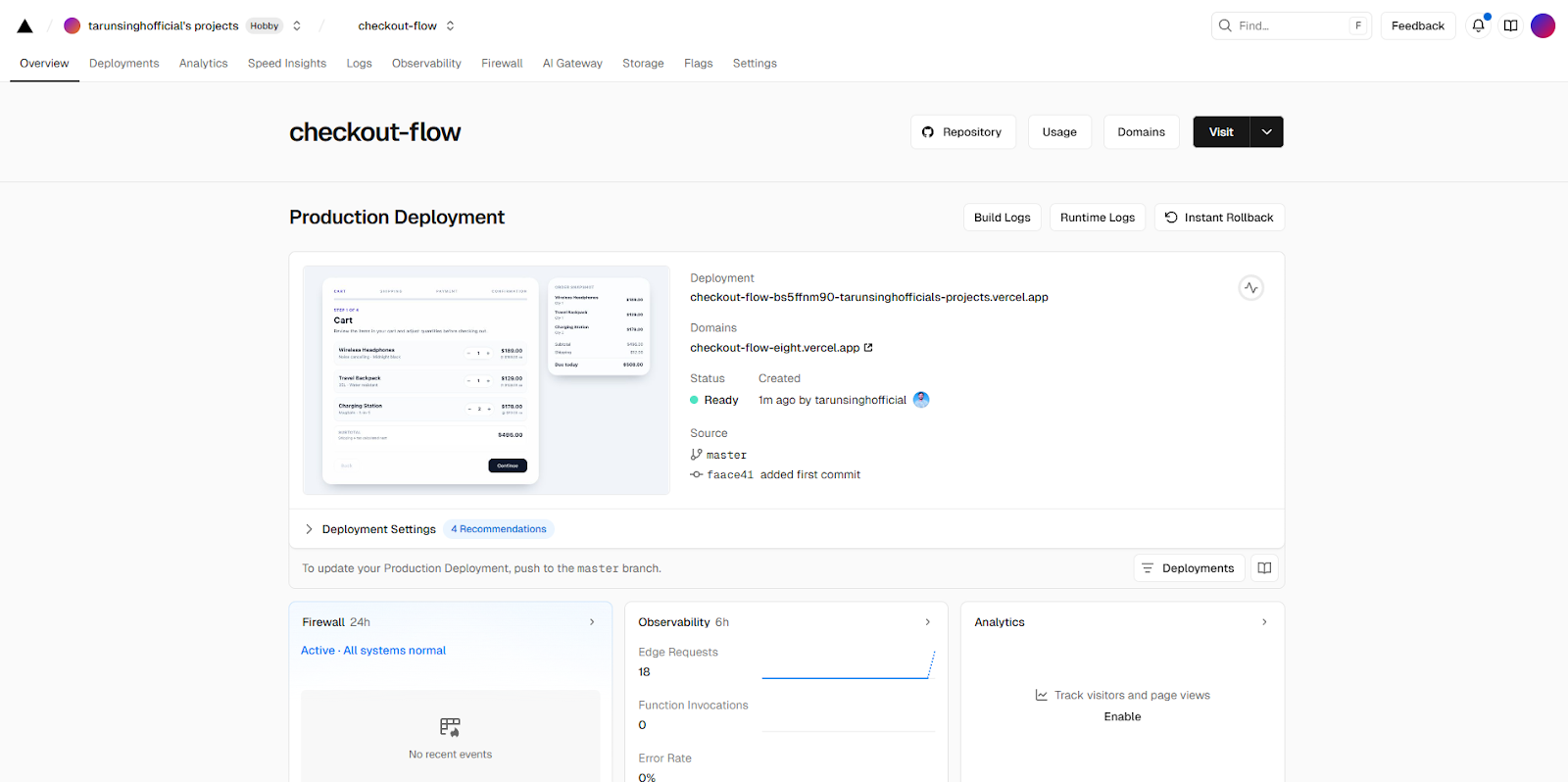
iOnce the code is done, we just push it to GitHub. That’s all it takes; from there, Vercel handles everything for deployment automatically.
But why Vercel? Simply because it lets you preview deployments before your code gets messed up in production.
Why Preview Deployments Matter for CI/CD?
Preview deployments change how we work. With tools like Vercel’s DX, every PR gets its own URL, like checkout-app-pr-987.vercel.app, along with a fully-functional and evergreen environment.
When the developer pushes the code that implements our new checkout process, as well as the hidden coupon bug, here’s what automatically happens via Vercel:
- The latest code is retrieved from GitHub;
- The application itself is built;
- The app is deployed to a unique preview URL that is shareable (e.g.,
checkout-app-pr-987.vercel.app).
This individual deployment ensures speed. Bugs are fixed without interfering with or slowing down any other projects. No more “works on my machine.” No more rolling the dice on staging.
The checkout application is now live and available for testing.
Let QA.tech Handle the Tests
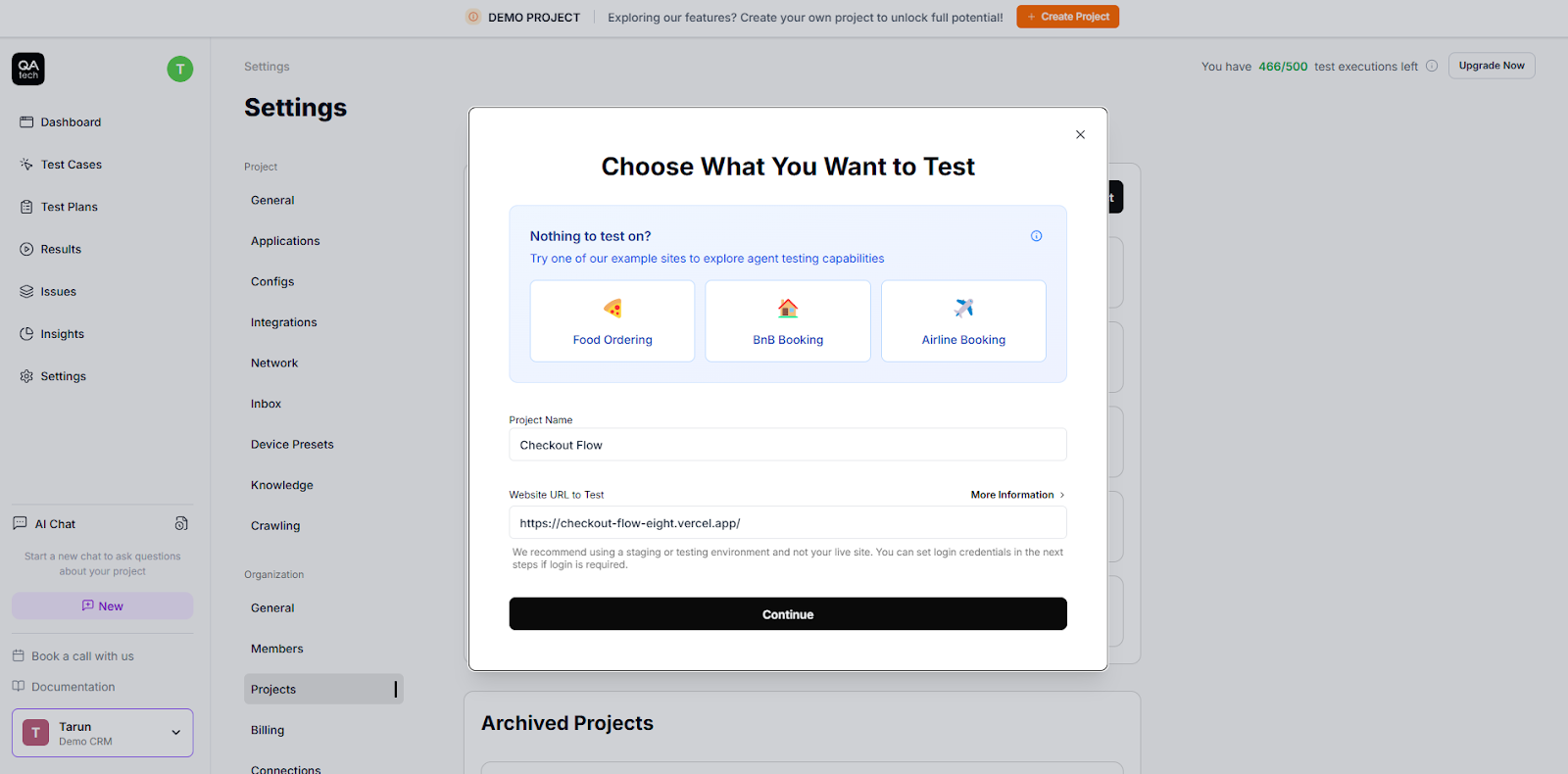
Here comes the interesting part. Add your project to QA.tech and point it at your Vercel-deployed URL. QA.tech will then scan your web app and learn the structure by building a knowledge graph.
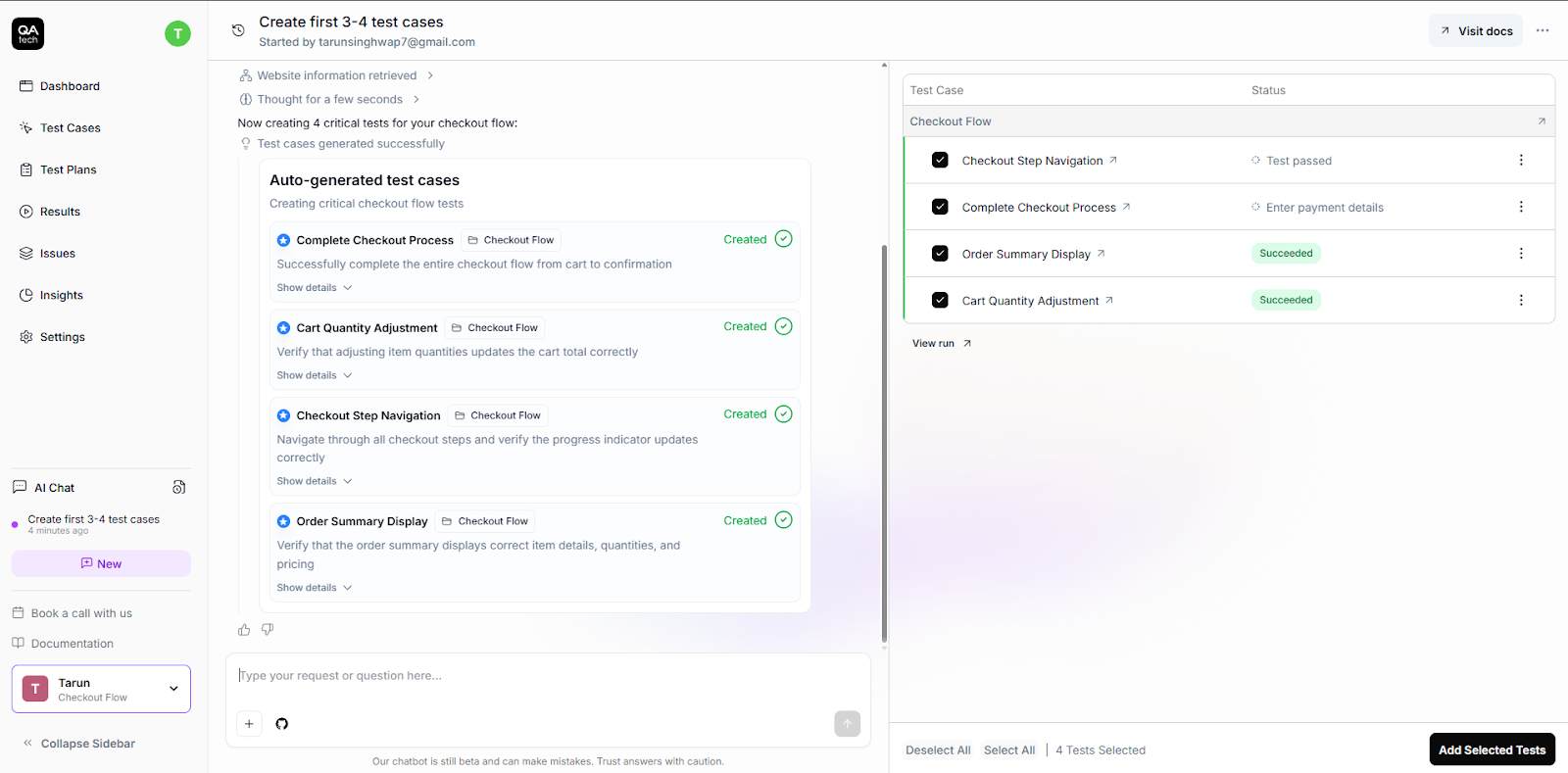
We’ll create some tests for our application. Open the chat and describe what you want to test. For instance, “Create 3-4 initial tests for my app.”
From there, QA.tech will generate the test steps automatically. Remember, it already knows everything about your app, like where the cart is, how to fill shipping forms, where the payment button lives, and the confirmation page.
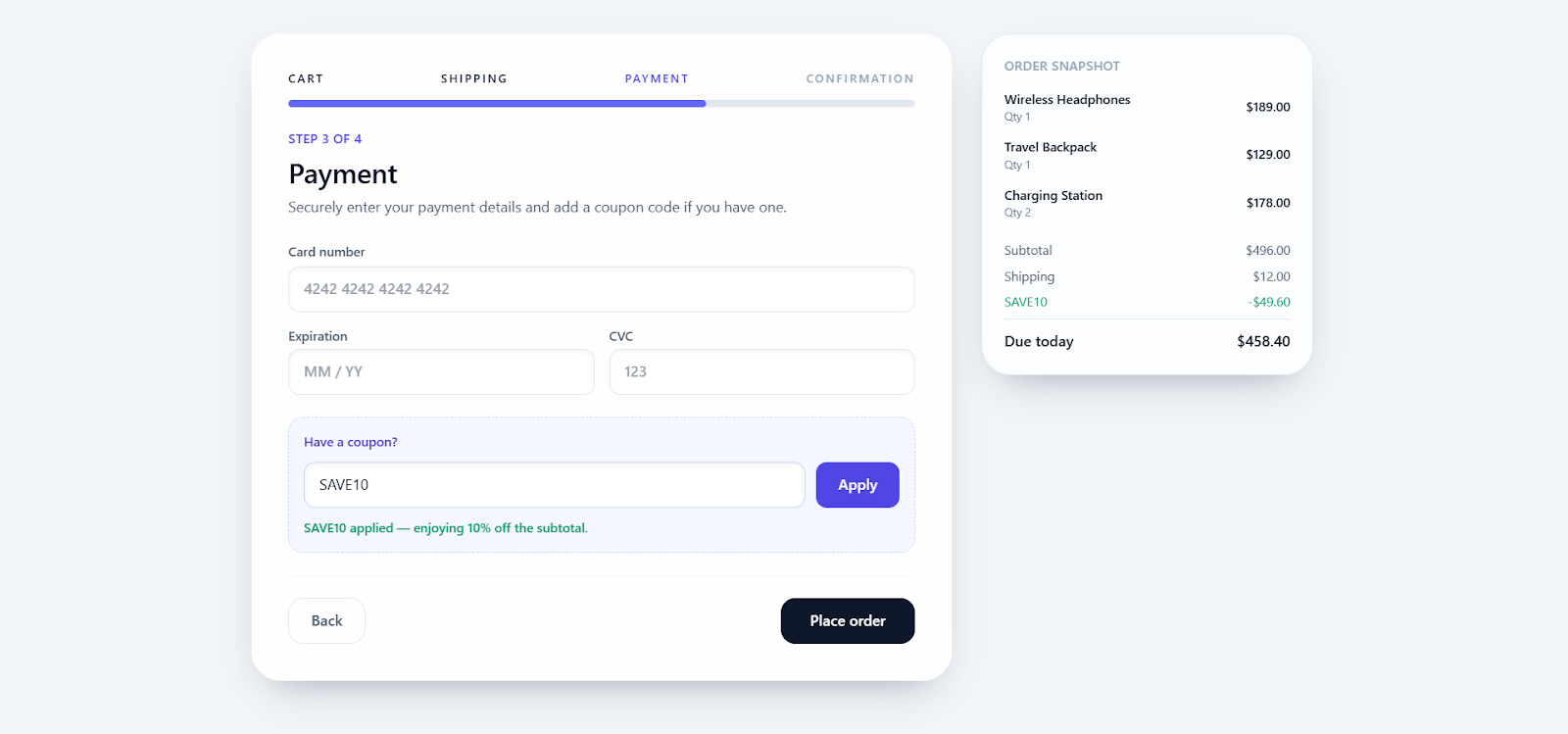
We’ll add another test for validating the coupon code confirmation on mobile screens. You can create this test case manually through the “Add test case” button or generate it in the chat, by prompting something like, “Test the coupon code confirmation message for mobile screens on step 3.”
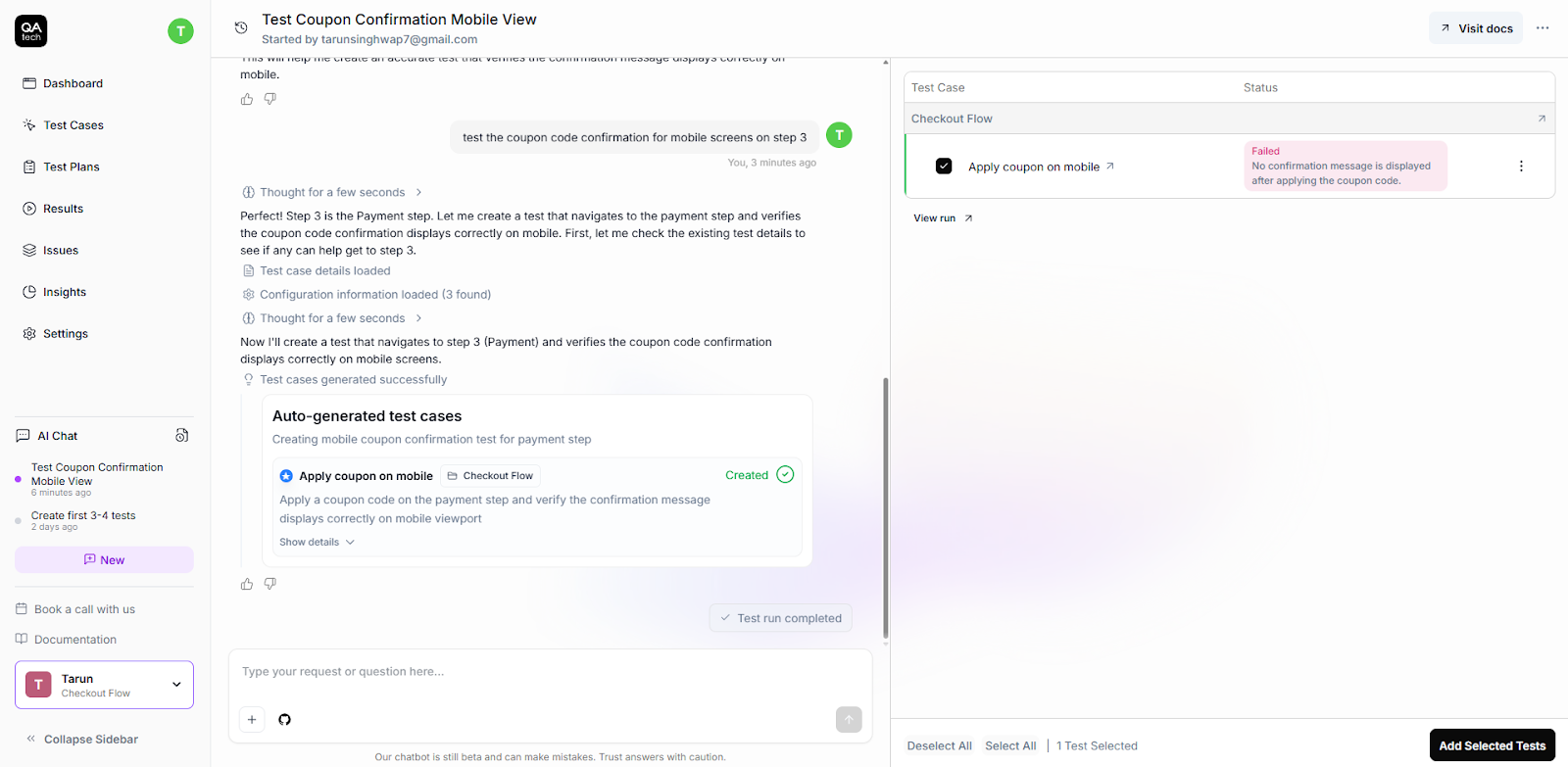
QA.tech will auto-generate the tests based on your input and run them directly against your live app.
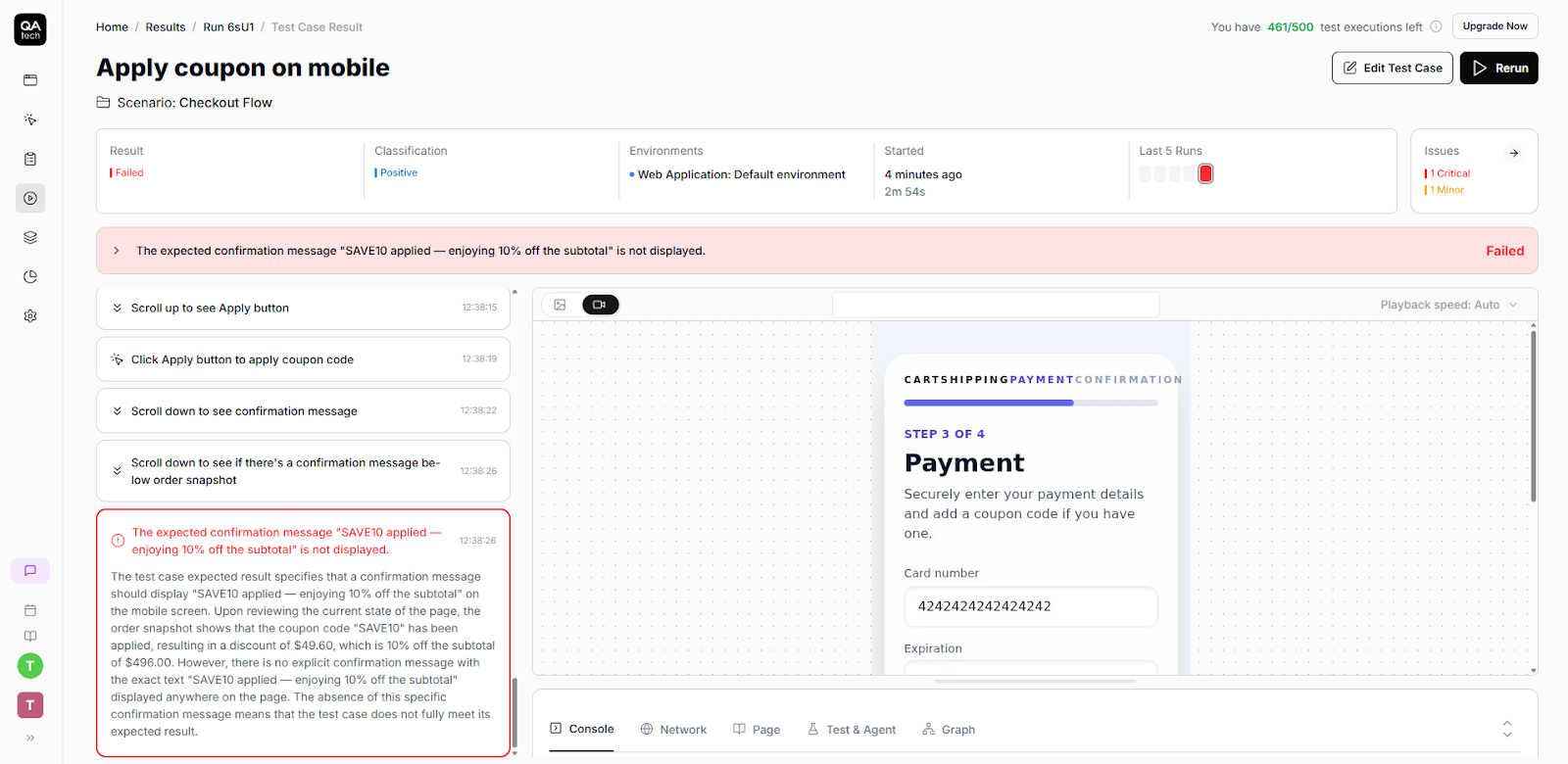
The bug that was left by Cursor while building the application was caught by QA.tech, causing the test to fail.
QA.tech also provided us with all the relevant steps, along with the logs, network details, and test results. These are exactly the insights we need to debug the issue efficiently. Before we fix it, though, let’s connect the tools so they work together.
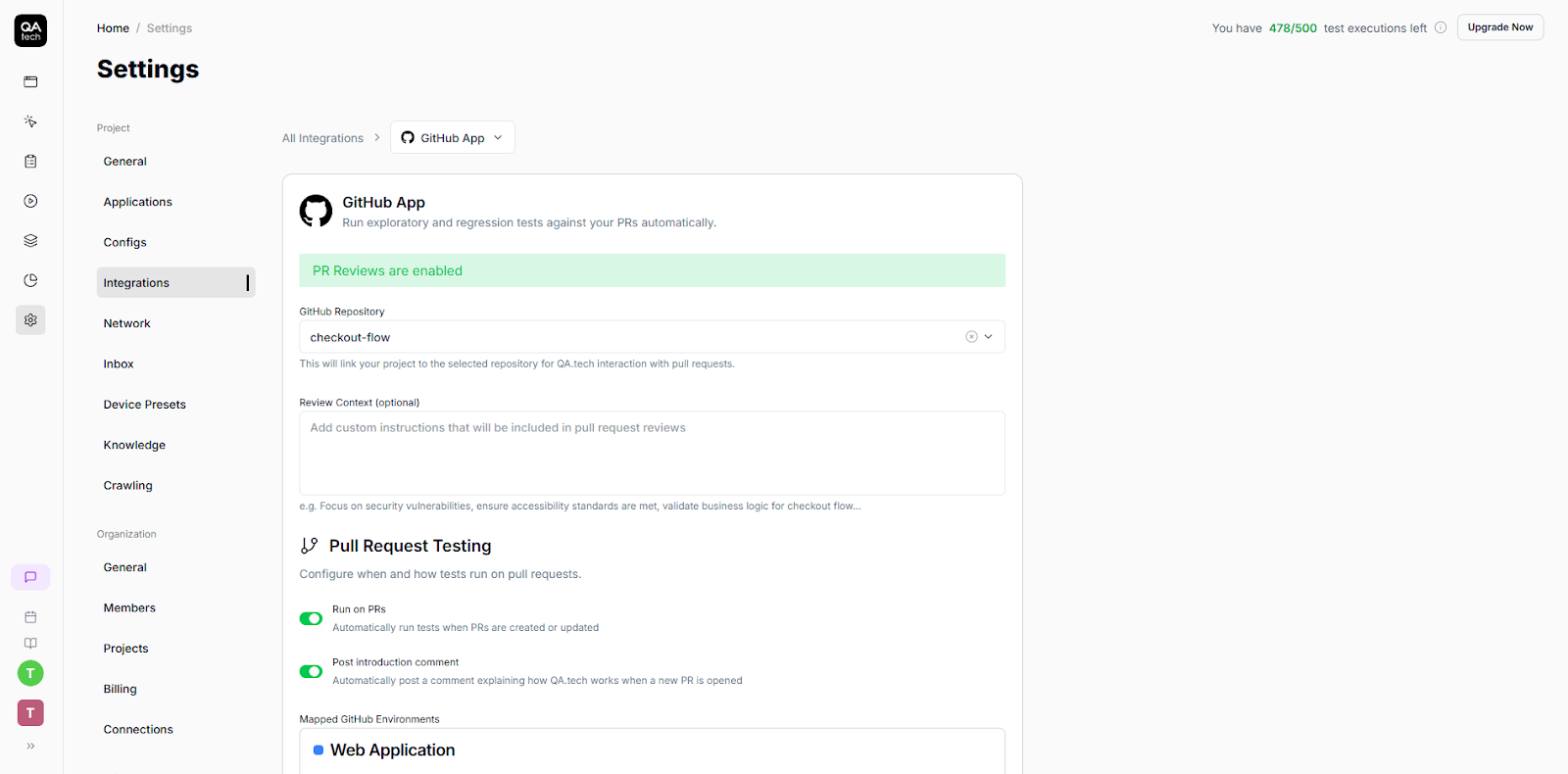
First, connect the GitHub App with your project repository. Go to Settings → Integrations → GitHub App. Select the relevant repository here, and allow the “Run on PRs” option from the Pull Request Testing.
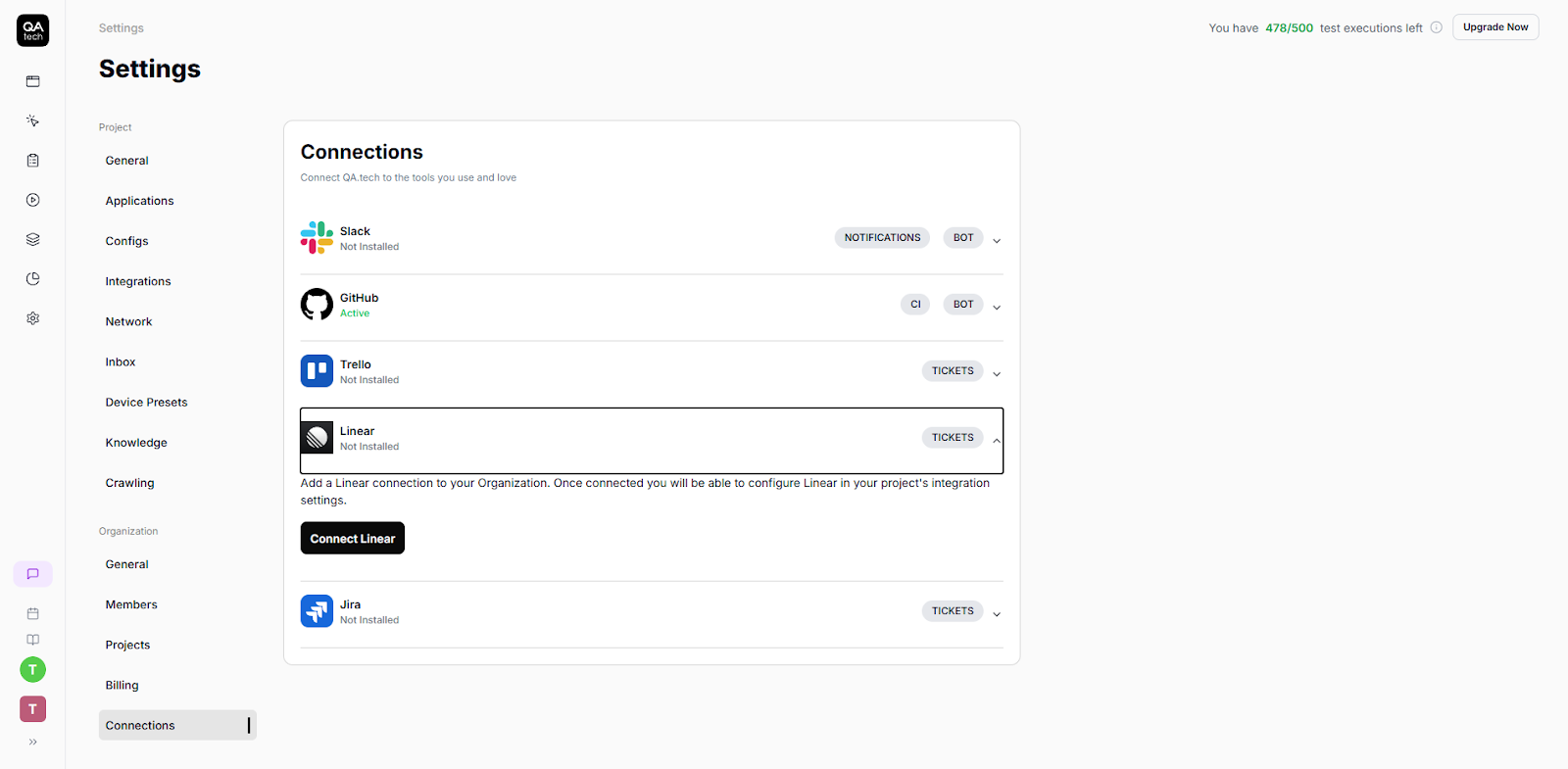
Next, connect Linear, so our bugs can flow directly into our project management tool.
To do this, Go to Settings → Organization Connections → Connect Linear.
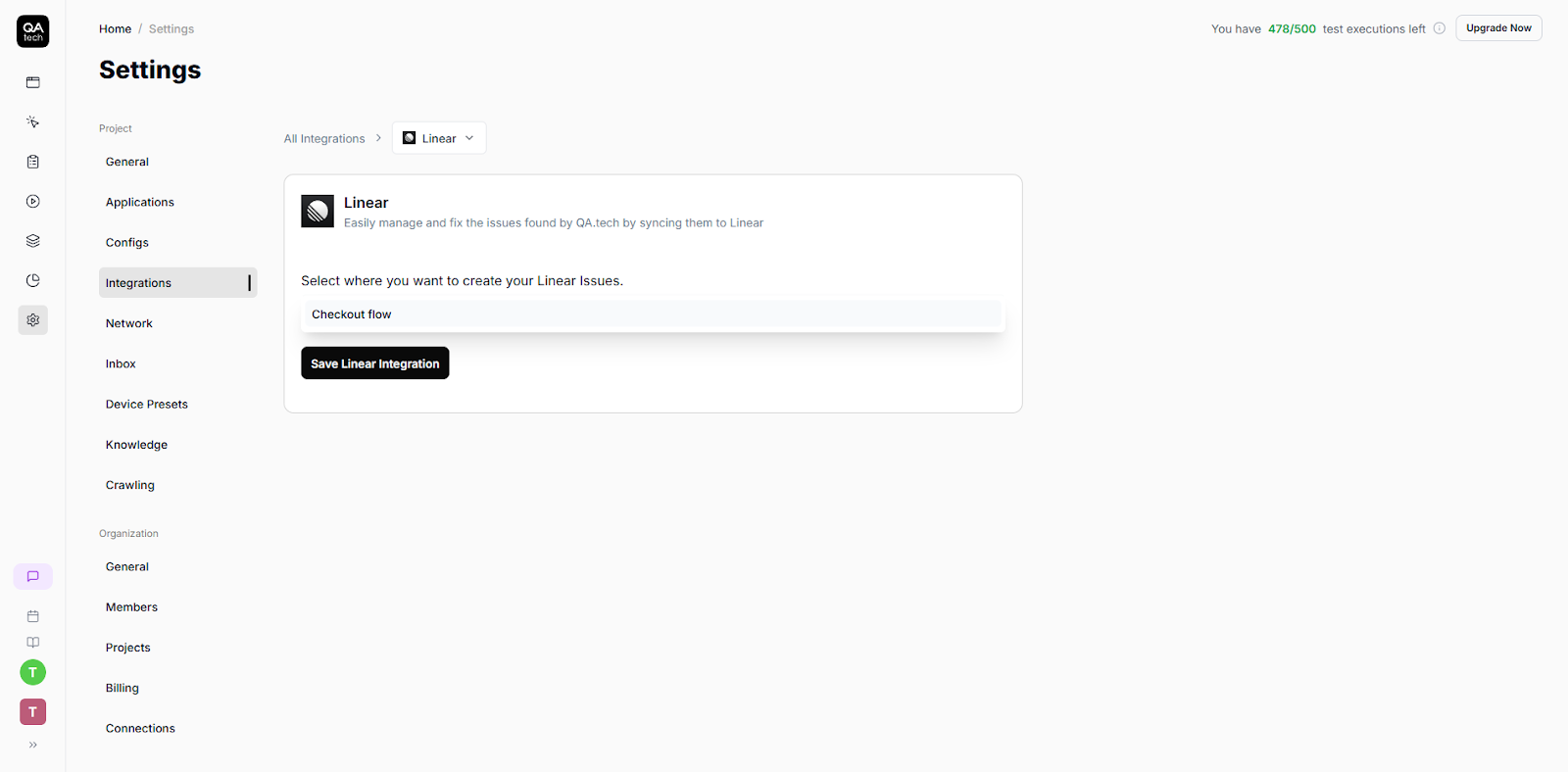
Then, from the Project Settings → Integrations → Linear, select your team from the dropdown, and save it.
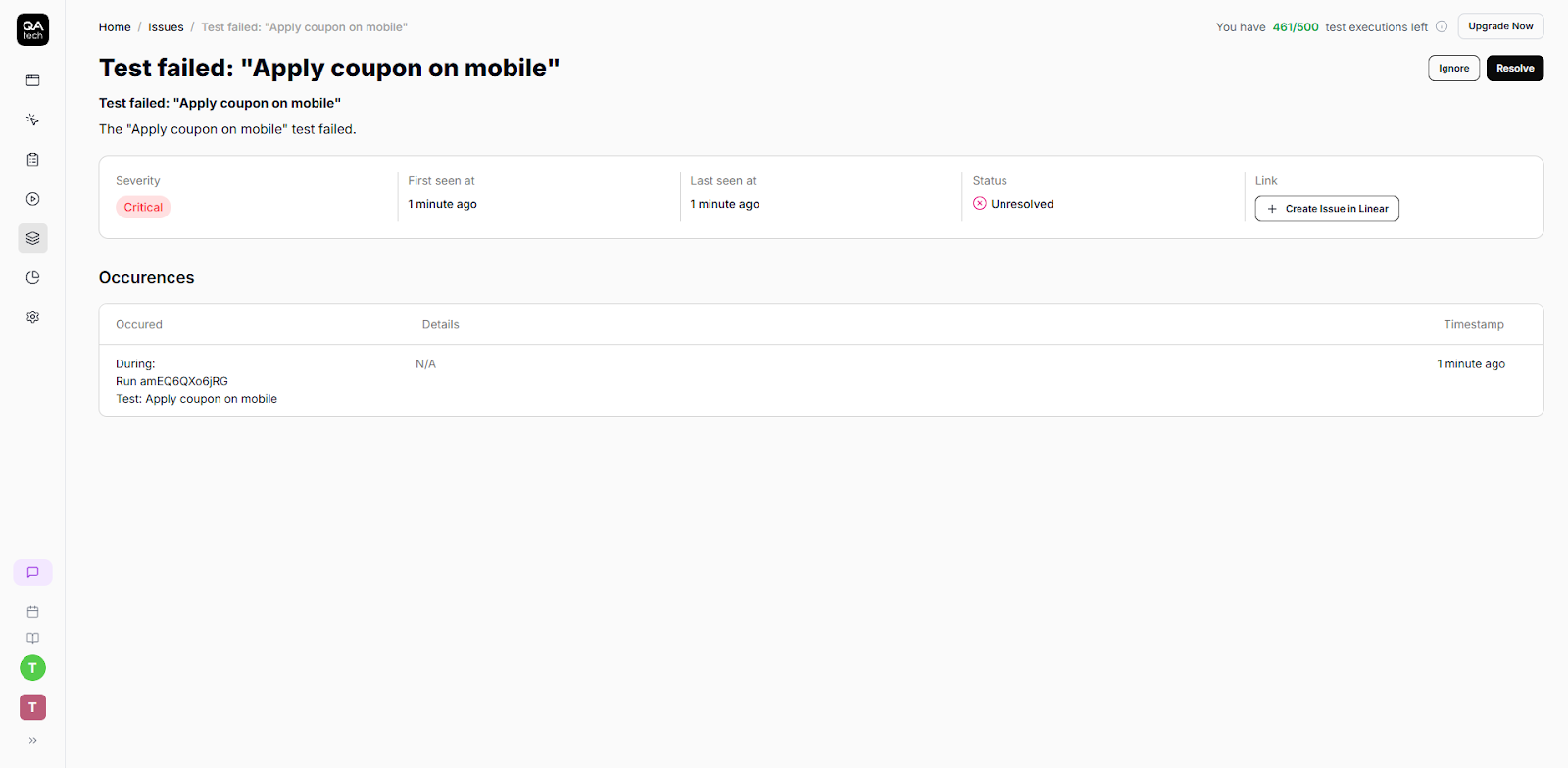
We’ll now create issue tickets in Linear directly from QA.tech. Notice how QA.tech has already listed our failed test case under the issues section, giving you an option to export this bug directly to your Linear account?
Simply click "Create issue in Linear" on the dashboard.
Your Linear dashboard will now show the issue created by QA.tech with details such as type, first seen, description, and a link to the test.
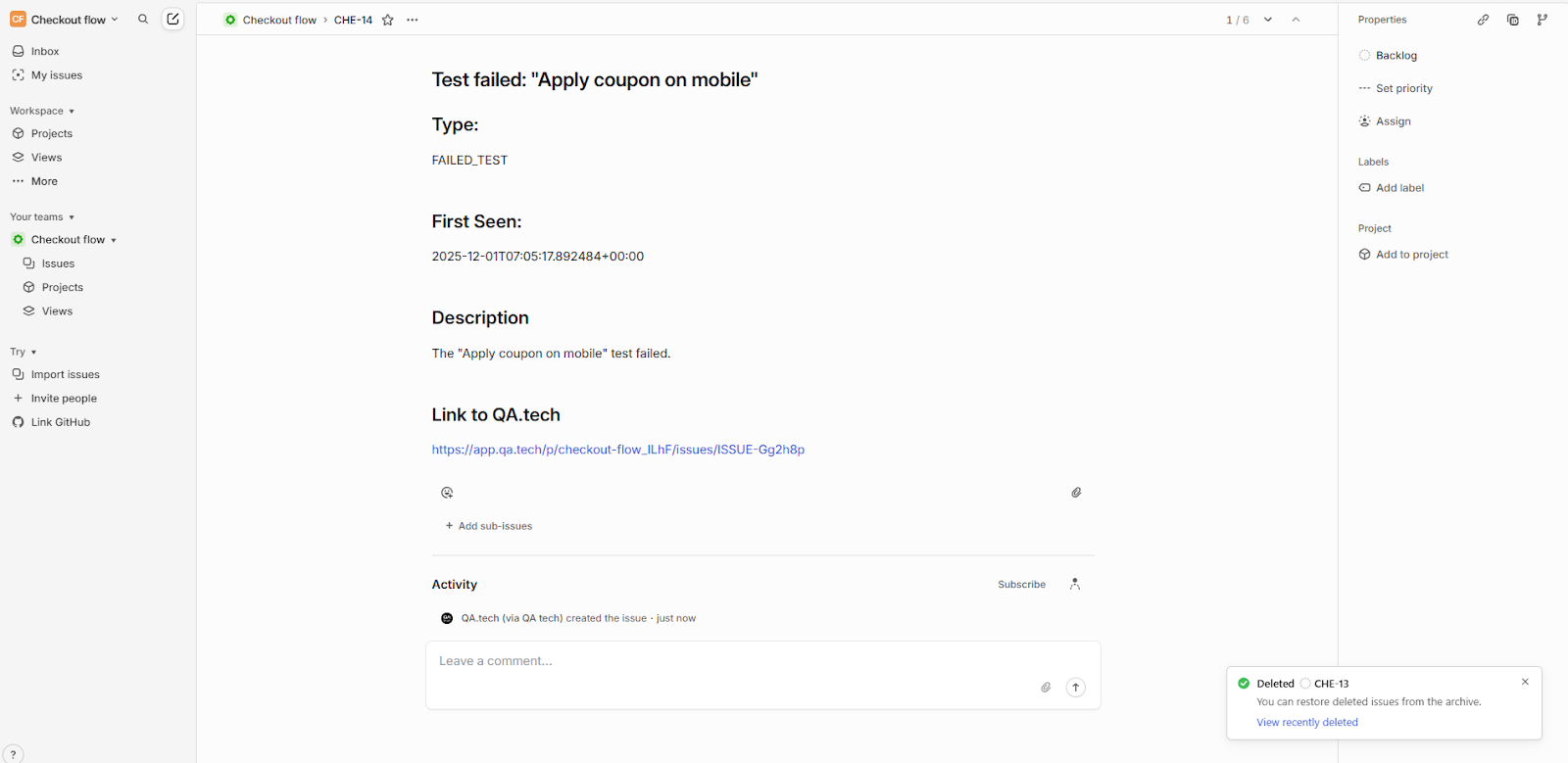
Now comes the automated part. We’ll fix this bug and watch how the tools work together.
Fix, Push, Repeat (The Actual Workflow)
Back to Cursor. We’ll fix the issue by identifying where the bug occurred.
In PaymentStep.jsx, the issue was that we were using hidden in the confirmation message class, causing it not to show on mobile screens.
<div className="bg-indigo-50/60 p-4 rounded-2xl border border-indigo-200 border-dashed">
  <p className="text-sm font-semibold text-indigo-700">Have a coupon?</p>
  <div className="sm:flex-row flex flex-col gap-3 mt-3">
    <input
      type="text"
      value={couponInput}
      onChange={(event) => onCouponInputChange(event.target.value)}
      placeholder="SAVE10"
      className="text-slate-900 focus:border-indigo-500 focus:outline-none focus:ring-2 focus:ring-indigo-100 px-4 py-3 w-full text-base bg-white rounded-xl border border-indigo-200 shadow-inner"
    />
    <button
      type="button"
      onClick={onApplyCoupon}
      className="hover:bg-indigo-500 px-6 py-3 text-base font-semibold text-white bg-indigo-600 rounded-xl transition"
    >
      Apply
    </button>
  </div>
  {couponStatus === "applied" && (
    <p className="sm:block pt-3 text-sm font-medium text-emerald-600">
      SAVE10 applied — enjoying 10% off the subtotal.
    </p>
  )}
  {couponStatus === "invalid" && (
    <p className="sm:block hidden pt-3 text-sm font-medium text-rose-600">
      That code is not active. Try SAVE10 for this order.
    </p>
  )}
</div>
Once that’s done, push the latest changes and create a PR with a new branch. Vercel will then deploy a preview URL automatically.
Now, QA.tech’s GitHub App detects the PR. It analyzes your changes and selects the relevant tests, like the coupon validation tests we created earlier.
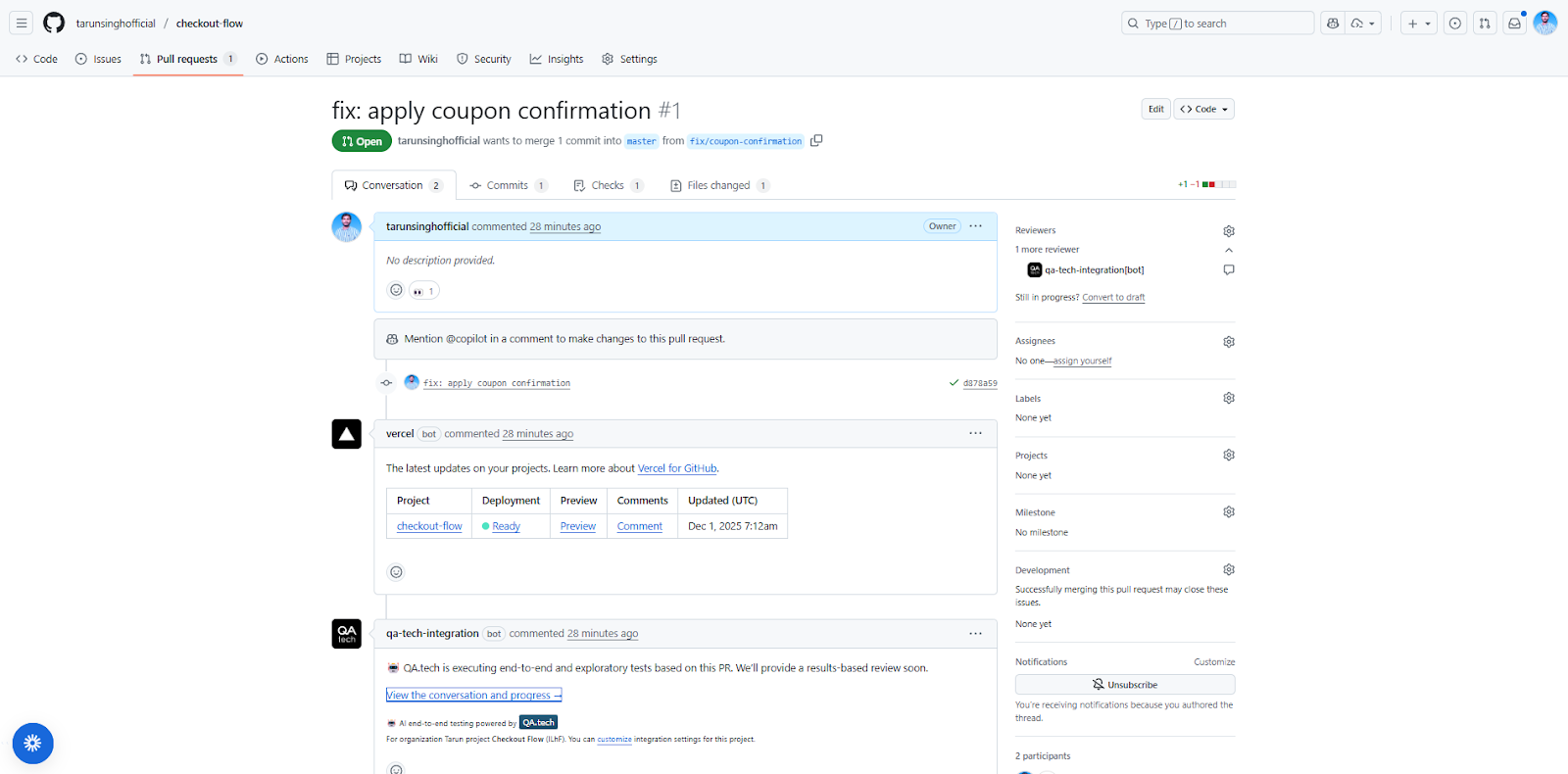
It runs those tests against the Vercel preview URL: no manual intervention, no clicking through the app yourself. QA.tech’s bot will run the tests and comment in the PR to give the user real-time updates.
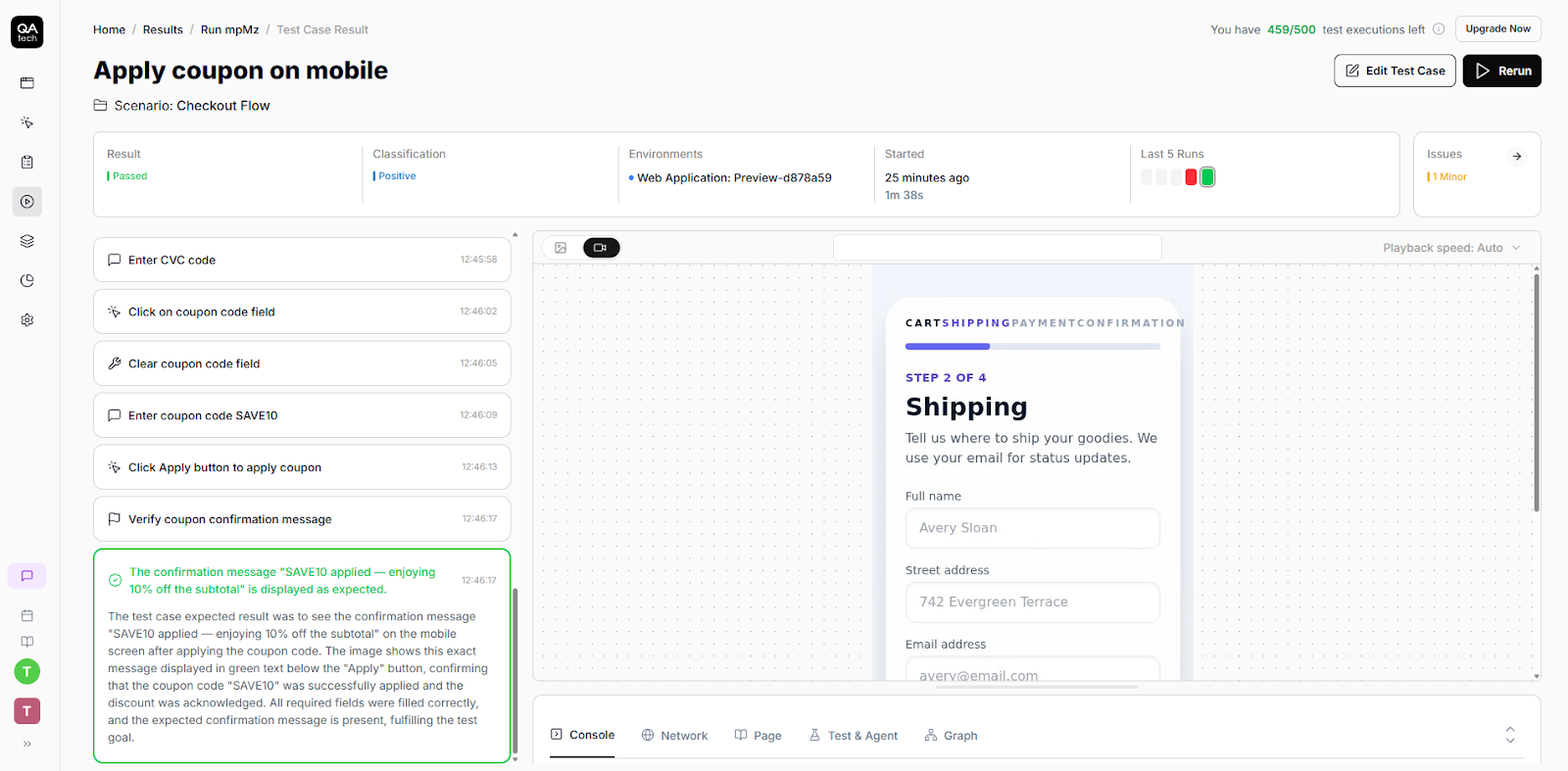
In our QA.tech dashboard, all tests have passed, and the validation message now appears correctly on mobile.
The QA.tech bot approves the PR and comments on your PR with the complete test summary.
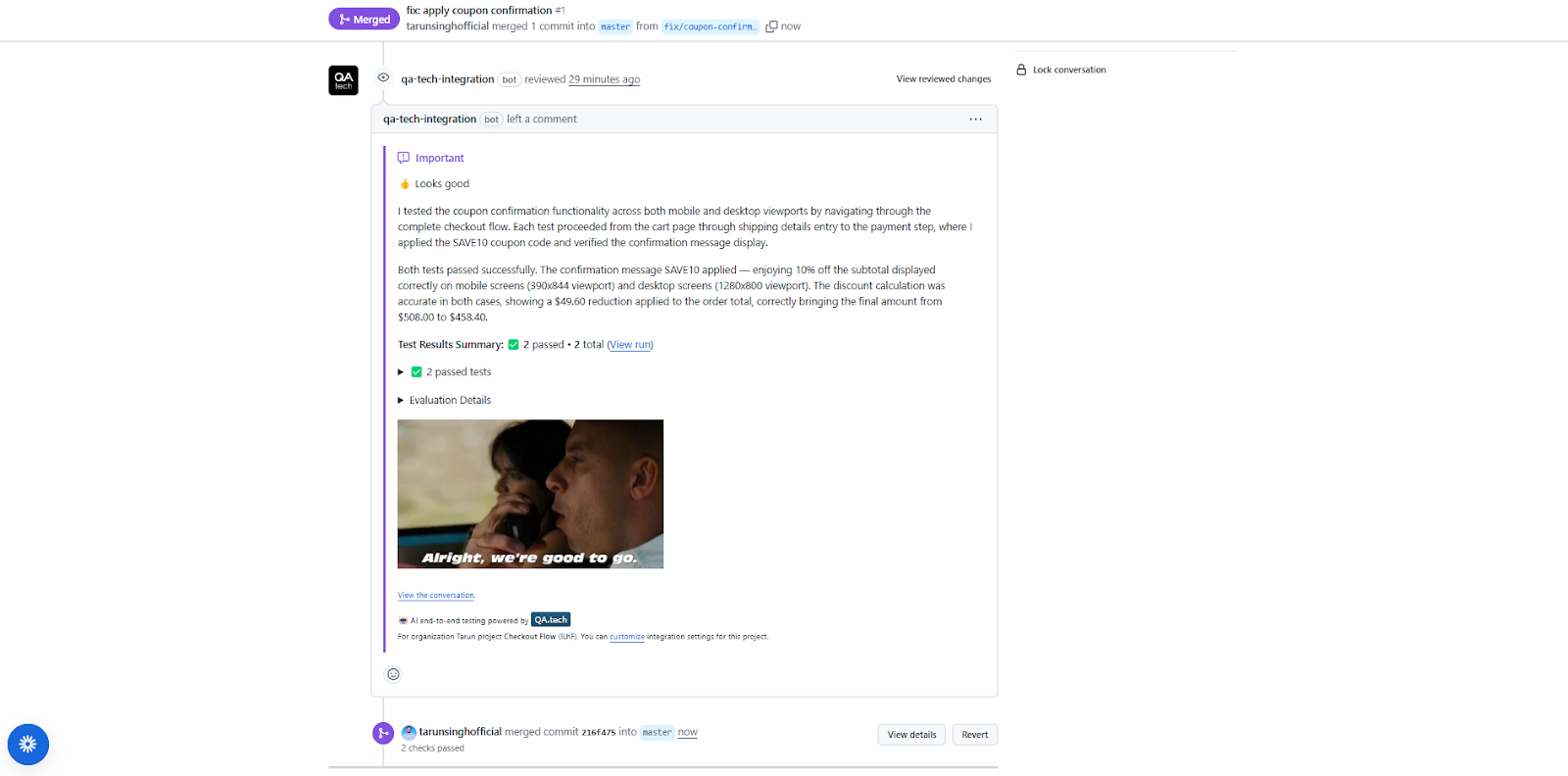
The complete process (updating the code, merging, deploying, and testing) took about 5-8 minutes without manual intervention.
Every future pull request (PR) will follow the same process: make changes, push, and let the tests run automatically. Bugs will get caught before merge, and the whole automated cycle will let the teams ship faster.
Wrapping It Up
Each tool in this new AI builder excels at one thing. Linear provides the focus needed for rapid planning and issue tracking, Cursor accelerates the product development workflow, Vercel gives us instant deployment preview URLs, and QA.tech handles testing automatically. Together, they create a workflow that lets teams ship faster without compromising on quality.
Despite the importance of each step in the process, testing is often the one thing that teams spend the least time on. However, this article has showed that you don’t need a bigger team; you only need smarter tools that work well together.
And the best part is that you don’t have to maintain test scripts. Add a feature, and QA.tech will create new tests. Change a UI flow, and tests will update automatically. You just focus on building, and let AI handle the testing.
Ready to stop writing, maintaining, and debugging brittle E2E tests? Book a call today and see how QA.tech transforms your testing workflow.