In a world where countless options exist, your app must deliver a memorable and appealing user experience. A cohesive UI that is bug-free and consistent across screen sizes builds trust and loyalty, which helps you gain new users and also retain them, regardless of what the competition has to offer.
Therefore, either your app falls among the 88% that users abandon because of bugs, or you eliminate all bugs and boost user retention.
Traditionally, companies use manual testers who rely on their visual assessment to discover UI bugs, but this process is slow and prone to human bias. Some startups automate this type of testing by comparing baseline images, yet it often results in too many false positives.
Luckily, there’s a third option: AI agents. They test your app just like real users, which allows them to understand the nuances and pick up relevant UI bugs.
In this article, we’ll explore where manual and automated visual tests fall short and why you should use agentic testing instead. Most importantly, I’ll show you practical ways of using QA.tech agents to catch UI bugs before your users do. Let’s begin.
Levels of UI Testing: From Basic to Agentic
Visual testing can be manual, automated, or agentic. Here’s how each level stacks up against the other two and why agentic UI testing is recommended.
Manual Testing
Manual testing involves hiring human testers who spend hours staring at baseline images and the UI, as if they were playing a spot-the-difference game. While this method is effective for catching glaring issues that mess up user experiences, it’s prone to bias, and many bugs manage to slip through.
On top of that, manual testers typically have to look at dozens of screen sizes for each page, which makes it an excruciatingly slow process that cannot keep up with frequent app updates.
Snapshot Testing
Snapshot testing compares web page screenshots with established baseline images. It flags pixel differences in image bitmaps as UI bugs.
This is definitely a step up from manual testing. For one, automated comparisons identify bugs in thousands of screenshots and generate diffs for failing tests in minutes. They also catch differences that are not visible to the naked eye.
But many companies no longer use snapshot testing because of too many false positives, even with tolerance thresholds in place. The slightest pixel difference can register as a bug. That’s a major disadvantage when you consider that harmless factors like dynamic content, anti-aliasing, image resizing, and rendering algorithms may cause them.
Even though some tools use machine learning to reduce false positives, they still require tolerance thresholds and baselines. That brings us to the best way to test your UI.
Agentic Testing with QA.tech
Most users are not sniffing your UI for designs that are not pixel-perfect. They are simply trying to complete actions such as logging in, ordering an item, creating a list, or adding a collaborator. By testing user flows, the AI agent interacts with your app the way an actual user would, noting UI and UX bugs along the way.
Since users are accessing your app from a wide range of devices and browsers, your UI will render differently on each. However, you don’t have to test for every possible combination. QA.tech uses autonomous AI agents to run tests that check user flows. All you need to do is confirm that the UX remains smooth regardless of the device.
In addition, you no longer have to worry about creating and maintaining baselines. Agents generate goal-driven test steps from natural language and automatically modify them when there are changes to the UI. They also run exploratory or regression testing and adjust tests to fit push changes.
All in all, AI agents like QA.tech understand UI regardless of dynamic web pages. They identify the key user actions in every flow and raise errors if there are problems completing them.
How to Catch UI Bugs with QA.tech
Although QA.tech is primarily a functional testing agent, it is also the recommended way to test your user interface. Here’s how you can catch UI bugs before your users do.
Focus on Goal-Driven Functional Tests
The first thing you need to do is describe the test goal and expected result. The agent then automatically generates test steps to complete the flow. It reads text, clicks buttons, fills forms, scrolls pages; basically, it “thinks” and works like a real user.
For example, in the screenshot below, the goal was to add a new meeting. I also included some info in the expected result field, and the agent tested the flow.
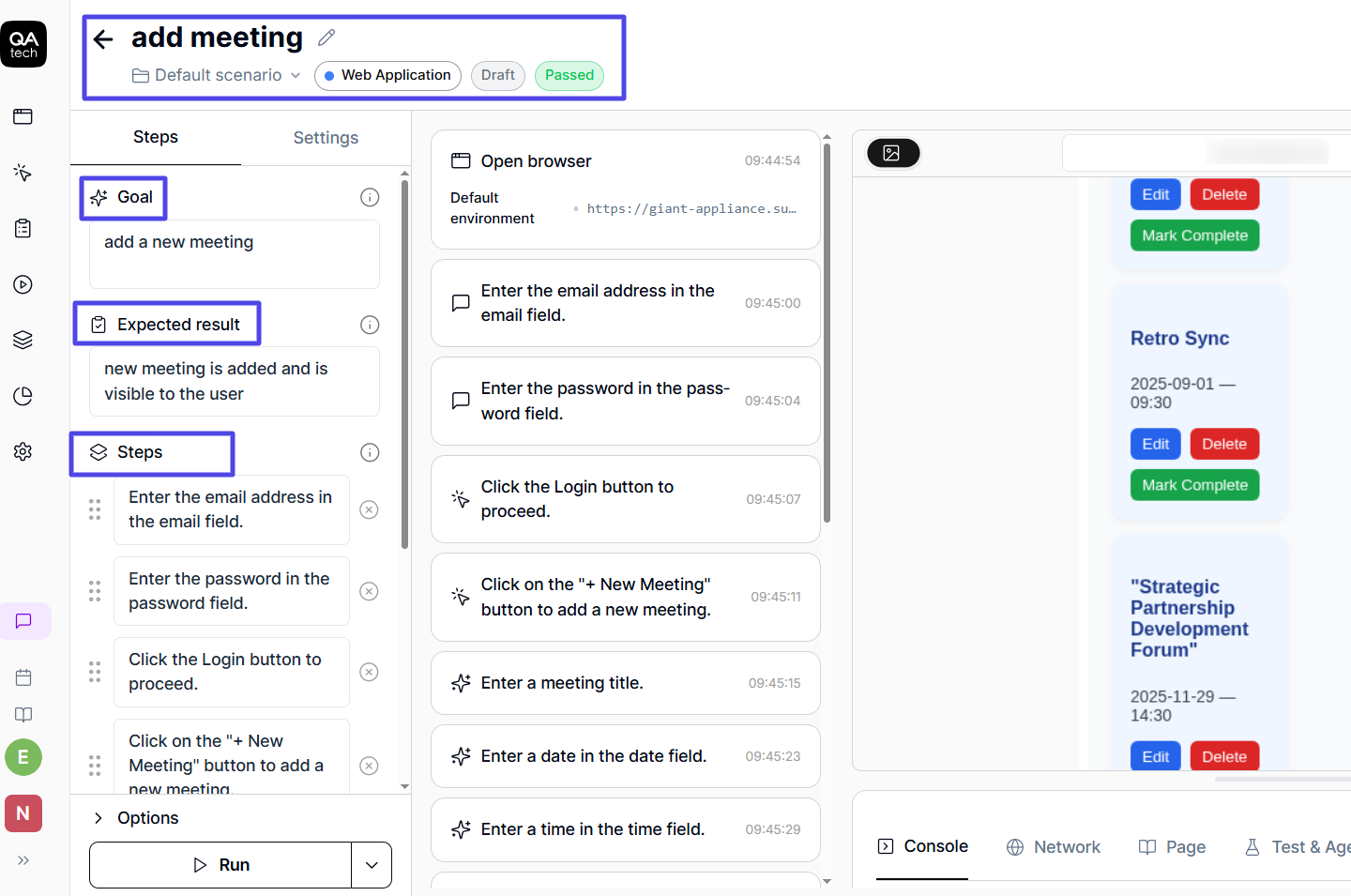
If a UI element isn't rendered properly or is unresponsive in a way that interferes with user experience, the agent logs that issue. For instance, if the button for adding a meeting is hidden behind another component, the test fails. Alternatively, if the text goes off the screen so that the agent can't read it properly to complete the flow, that raises an error, too.
The best part about functional testing with AI agents is that the UI bugs they catch directly impact user experience, which eliminates the problem of false positives.
Look at Video Recordings and Before/After Screenshots of Tests
QA.tech records tests and takes screenshots before and after every step. For instance, when testing the “New Meeting” button, it captured a screenshot before clicking the said button. It also took some of the empty form, after filling out the form, and after clicking “Add.” As you can see, there’s a visual record of the UI state at every step.
For failed tests, you can review the recordings to see how everything unfolded and check screenshots for exact points of failure.
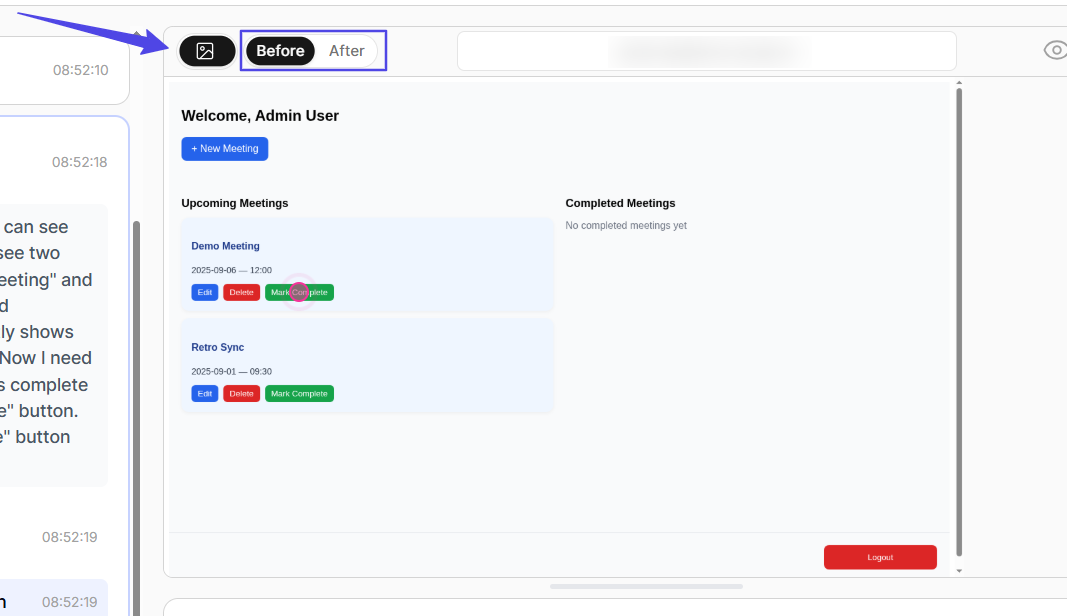
If you want to, you can use a snapshot comparison tool to turn screenshots from successful QA.tech tests into reusable baselines, but this is not really necessary.
Target Multiple Devices and Browsers
Pure visual testing tools often brag about supporting multiple device configurations, but QA.tech is just as capable.
You can set device presets for desktop, tablet, and mobile, each with a variety of configurations. For instance, you can choose a small, medium, or large mobile device with a set screen resolution. There’s even an option to test in the dark mode and see how your app renders across different themes.
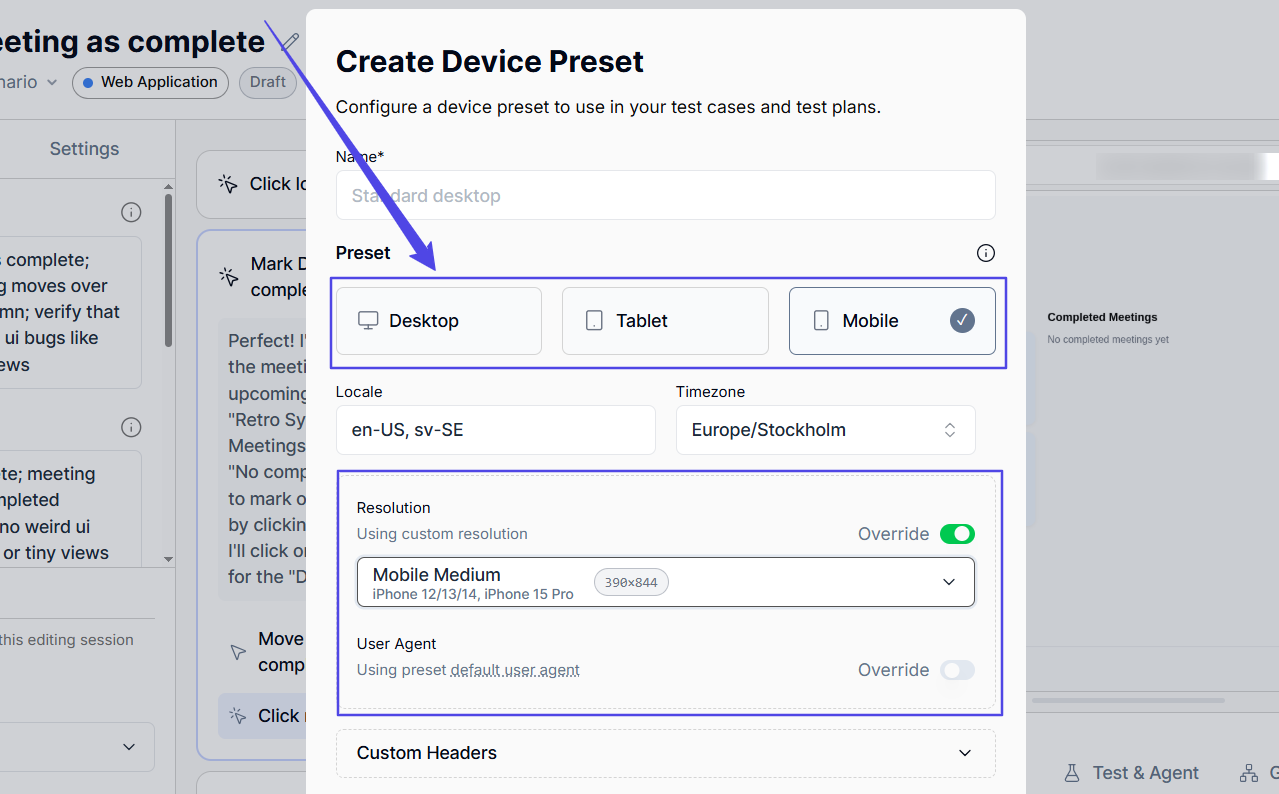
In addition, you can spoof browser types in the request headers to mimic how servers respond to Chromium, Safari, Mozilla, and Edge browsers.
Describe Expected UI States
Since the agents understand natural language, you can describe the expected result of a test in depth, including what the UI should look like.
In the test below, I specified that the expected result was for the meeting to be marked complete and moved to another column, with no weird UI overlays. The agent verified just that at the end of the test while checking for other UI bugs, too.
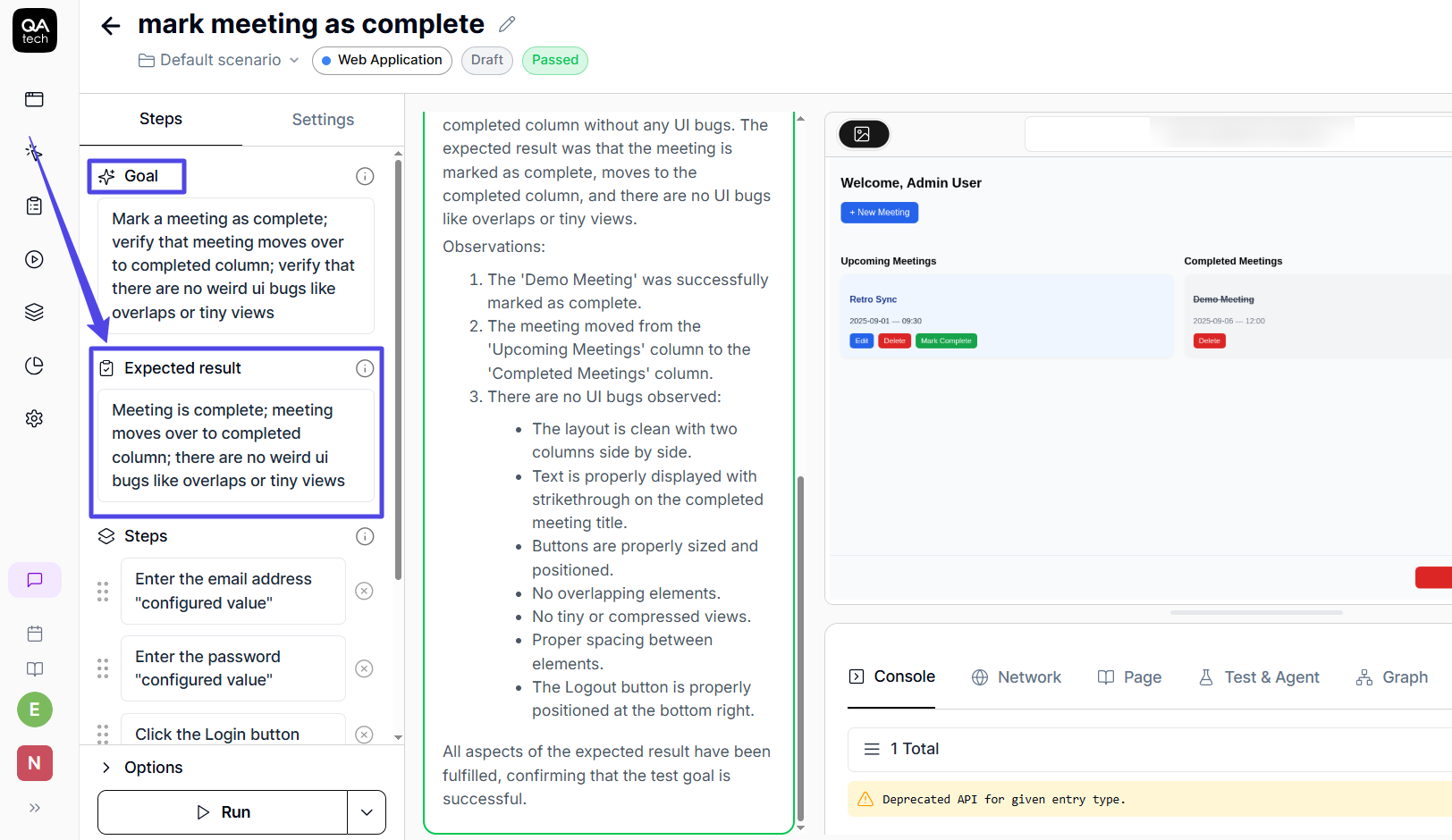
The ability to provide detailed prompts is an advantage that firmly places agentic testing above mere baseline comparisons. The prompts indicate more clearly what the agent should focus on, and you can even write entire paragraphs that specify how the UI should look.
Integrate Into CI/CD Pipelines
QA.tech supports integrating tests into build pipelines for regression testing after each push. This way, you get to verify that the user experience stays the same, regardless of any changes to the UI. In fact, design changes prompt the agents to adapt test steps while keeping goals and expected outcomes the same.
Tip: Replace Pure Visual Testing with Agentic Testing
If you currently rely on manual testers to verify your UI or create baselines, here’s why switching to goal-driven agentic testing with QA.tech will make a big difference:
- Test the UI and UX together: Agentic testing completes full user flows and evaluates both UI and UX. Since users experience them at the same time, it makes sense to test them together.
- Understand user intent and eliminate noise: When someone opens your app, they’re focused on completing a flow, such as signing up or adding a meeting. AI agents directly employ user intent and goals during testing. Every logged error reflects the actual user experience, reducing false positives and unnecessary alerts.
- Save testing costs: Agentic testing eliminates the need for multiple tools, as it handles functional, UI, automated, and exploratory tests, as well as issue tracking.
- Eliminate time spent on baselines: Your team will no longer spend hours creating baselines or reviewing them after UI changes. They won’t have to tinker with tolerance thresholds to reduce false positives.
- Use NLP to interact with the agent: Another major advantage is the AI chat feature, which lets you provide detailed instructions and even write long prompts describing exactly how the UI should behave.
- Automatically adapt tests to UI changes: The AI agent automatically adapts to changes in the interface while keeping the goal and expected outcomes the same. As a result, the updates to your design will not affect how users interact with the app in any way.
Finally
Agentic testing remains the recommended way to catch UI bugs. For starters, it’s incredibly easy to set up. It also doesn’t require test scripts or baselines, and it has no false positives. On top of that, you get the NLP feature that lets you guide agents by providing prompts.
Use AI agents to test the UI and create cohesive experiences across devices to keep users coming back to your web app. Push app updates with confidence knowing the UX will remain seamless regardless of UI changes.
Check out QA.tech to start today.
Many teams that want this handled automatically lean on QA.tech's autonomous QA agents to validate every release.